How to remove dust from film scans in Lightroom Classic
By Mantas Sutkus · 31 October 2026
Every film scan has dust. Whether you use a flatbed, a film scanner or a camera (DSLR or mirrorless scanning), a few specks, hairs and bits of lint get through, and on a dusty roll there can be hundreds per frame. Here is what works, in the order I'd do it.
Short answer
- Keep dust off the film before you scan: blower, antistatic brush or cloth, clean holder and light source.
- On colour film, turn on your scanner's infrared cleaning (Digital ICE, iSRD). It doesn't work on traditional black and white film.
- Heal what's left in Lightroom Classic with the Remove tool and Visualize Spots, at 100% zoom.
- For whole rolls, use a plugin that finds the dust and adds Heal spots for you, then check the result.
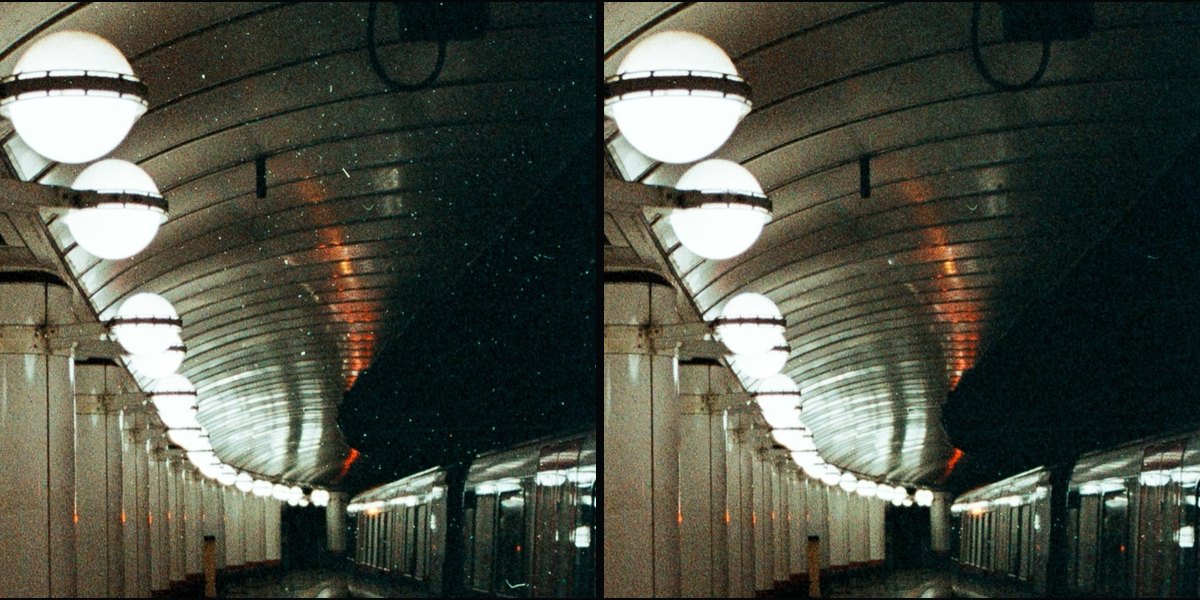
1. Keep dust off the film
Every speck you stop here is one you don't fix later.
- If you develop yourself, finish with a wetting agent rinse (such as Photo-Flo) and dry the film somewhere still, like a closed bathroom after running a hot shower.
- Keep negatives in sleeves until the moment you scan them. Hold them by the edges.
- Right before scanning, blow both sides with a rubber blower and wipe gently with an antistatic cloth or brush. Canned air can leave residue and adds static.
- Clean the film holder, the scanner glass or the light panel too. Dust there shows up on every frame.
2. Use infrared cleaning, if your film allows it
Many film scanners scan an extra infrared channel to find dust: Digital ICE on Nikon and Epson, iSRD in SilverFast, infrared cleaning in VueScan. It works well on colour negatives and slides.
It does not work on traditional black and white film, because the silver in the image blocks infrared light just like dust does. Chromogenic black and white film, such as Ilford XP2, is the exception. Camera scanning has no infrared channel at all, so camera scanners have to fix dust after the scan.
3. Heal what's left in Lightroom Classic
Fixing dust by hand is called spotting. It works the same on scans converted with Negative Lab Pro or any other conversion tool.
- Open the scan in the Develop module and press Q for the Remove tool. Choose Heal.
- Tick Visualize Spots in the toolbar under the photo. Specks show up as white outlines. Move the slider until the dust stands out but the grain doesn't.
- Zoom to 100% and work across the frame section by section. Click each speck with a brush slightly bigger than it.
- For lint and hairs, drag along them instead of clicking.
- Don't sync spots to other frames. Dust is in different places on every frame, so copied spots land in the wrong places.
This works, but it's slow. A dusty frame can take ten minutes, and a roll can take an evening.
Why Lightroom's Dust Removal doesn't fix film dust
Lightroom Classic has a Dust Removal option in the Remove panel. It's made for dust on a camera's sensor, which shows up as soft, out-of-focus blobs. Dust on film is sharp, and it sits in the same plane as the image. Adobe says scanned negatives are not in scope for the feature, and on most film scans it reports no dust at all.
4. Photoshop options
- Spot Healing Brush: faster than Lightroom for single specks, but still one click per speck.
- Dust & Scratches filter: removes small specks everywhere at once, but it also smooths grain and fine detail. If you use it, put it on a duplicate layer and paint it in only where you need it.
5. Remove dust automatically with a plugin
I built Dustinator because I was spending more time spotting my scans than shooting. It's a Lightroom Classic plugin that finds dust and lint on your film scans and adds normal Heal spots, the same ones you'd add by hand. It doesn't change the pixels in your file. You can move or delete any spot, or remove all of its spots with Revert.
- Colour and black and white, negatives and slides, scanner DNG and TIFF.
- Runs on your Mac; nothing is uploaded. Apple silicon Macs only for now.
- A 24-frame roll takes a few minutes.
It isn't perfect. It can miss a few specks, and on night shots it sometimes takes small lights for dust. Those are one click to delete. The first 24 frames are free: try it on your own roll.
Questions
Why are some spots white and some black?
On a scan of a negative, dust on the film blocks light and shows up as white specks once inverted. Clean the negative and rescan, or heal them. Black specks usually mean something blocked light when the photo was taken, like dust inside the camera. Those are in the negative itself, so they can only be fixed in editing.
Will removing dust remove grain?
Healing single specks doesn't. Filters that work on the whole image, like Dust & Scratches, do.
Should I clean my negatives with a liquid?
Only if dust is stuck and won't blow off. Film cleaner and a lint-free pad can work, but it's easy to scratch the emulsion, so try it on a frame you don't care about first.